Precision | Performance | Passion

Delivery available throughout australia

Shopping Cart (0)

Close

No products in the cart.

How to Disable Auto Start/Stop — Next-Gen Ford Ranger & VW Amarok

How to Disable Auto Start/Stop (2023+ VW Amarok & Next-Gen Ford Ranger)

If you’re over the engine cutting out at lights, this guide shows the module configuration changes used to disable the
Auto Start/Stop function on the 2023+ VW Amarok and 2023+ Ford Ranger (Next-Gen).

Important (read this first)

  • This procedure writes changes to multiple modules. If you get it wrong, you can trigger faults or module issues.
  • Use stable voltage support (battery charger/maintainer). Low voltage is how modules get corrupted.
  • If you’re not confident, book in and we’ll handle it properly.

Software & tools you need (use the correct one)

  • Software: FORScan — https://forscan.org/home.html
  • Ford Ranger (2023+): vLinker Cable (FORScan compatible)
  • VW Amarok (2023+): OBDLink LX Bluetooth 3.0 OBD2 Adapter (Android only)
  • Must-have: battery charger/maintainer during programming

Step-by-step (1, 2, 3)

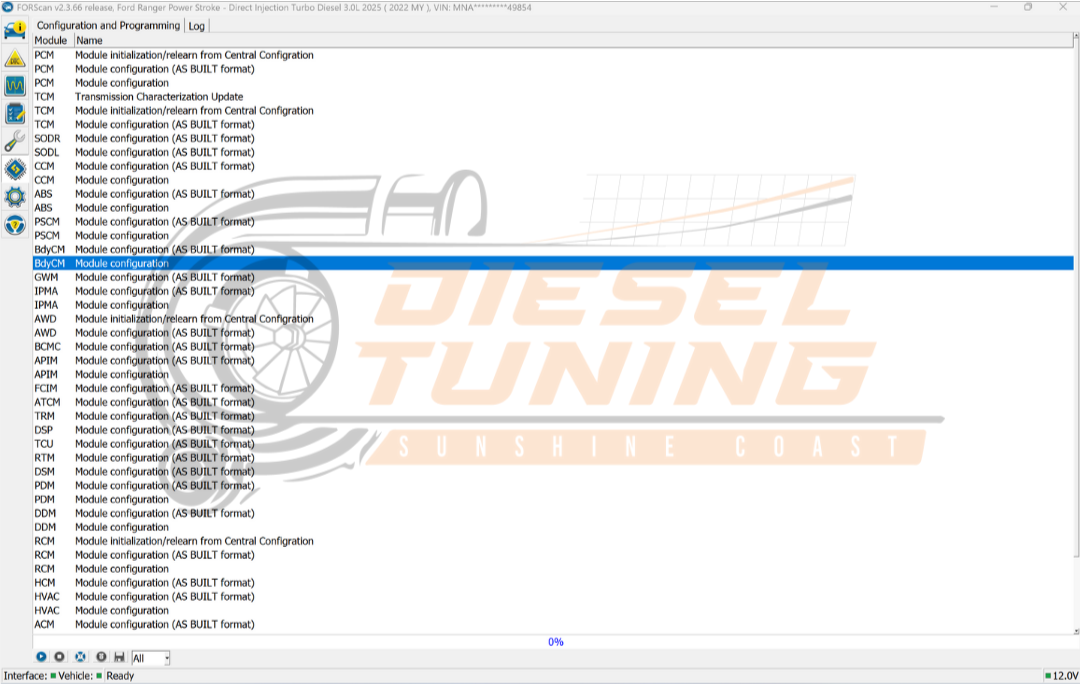
  1. Connect, scan, and confirm modules are available

    Plug in the correct adapter for your vehicle, turn ignition ON (engine OFF), connect in FORScan, and let it build the vehicle profile.
    Before changing anything, confirm the required modules appear in the list.
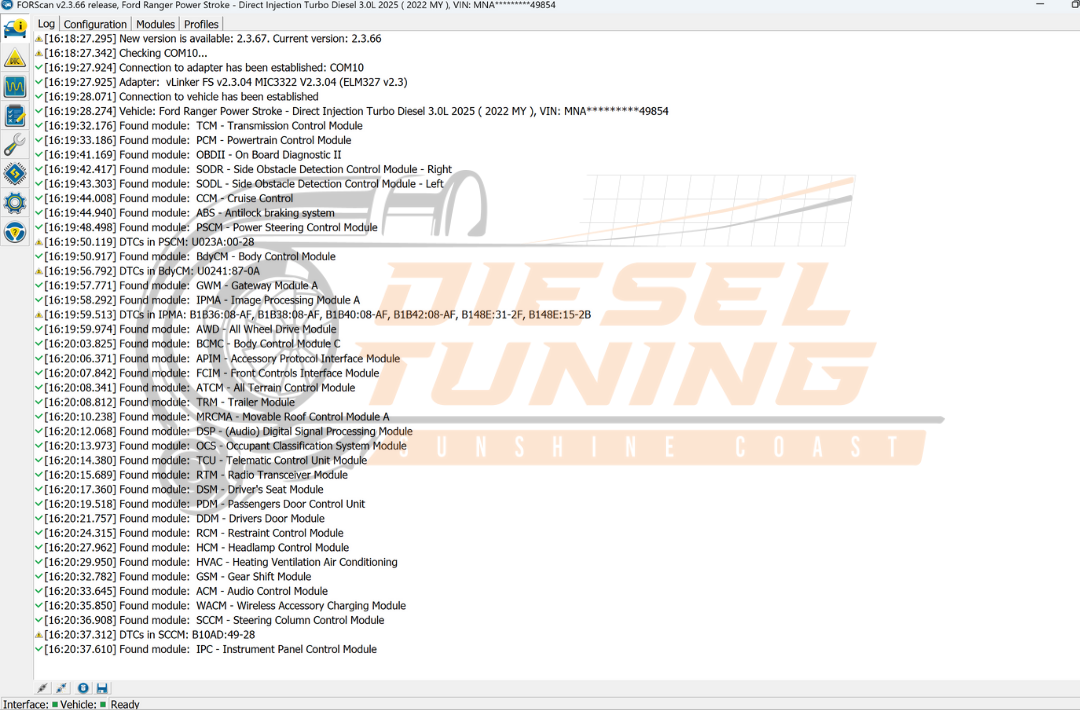
    Log of detected modules for Ford Ranger Power Stroke 3.0L Diesel 2025, including Body Control Module, Power Steering Control Module, and various other vehicle systems, displayed in FORScan interface.
    Figure 1: Confirm all modules load before changing anything.
  2. Disable Start/Stop in BdyCM (Body Control Module)

    These are the key changes that disable Start/Stop logic and adjust battery strategy.

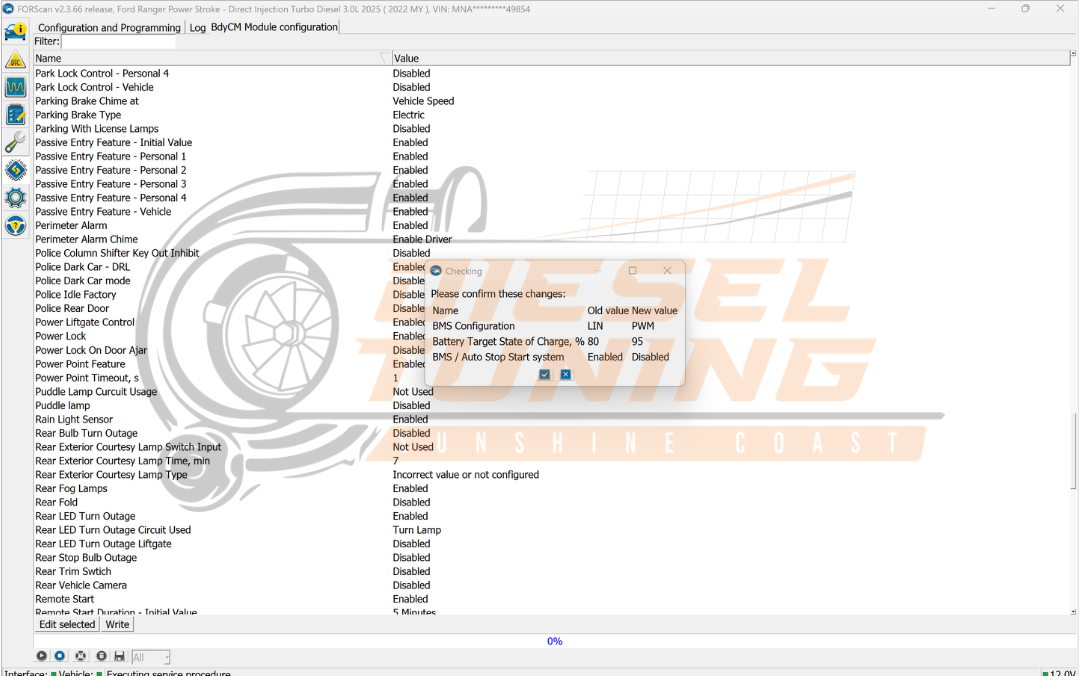
    1. Select BdyCM and enter configuration.
    2. Set BMW/Start Stop to Disable.
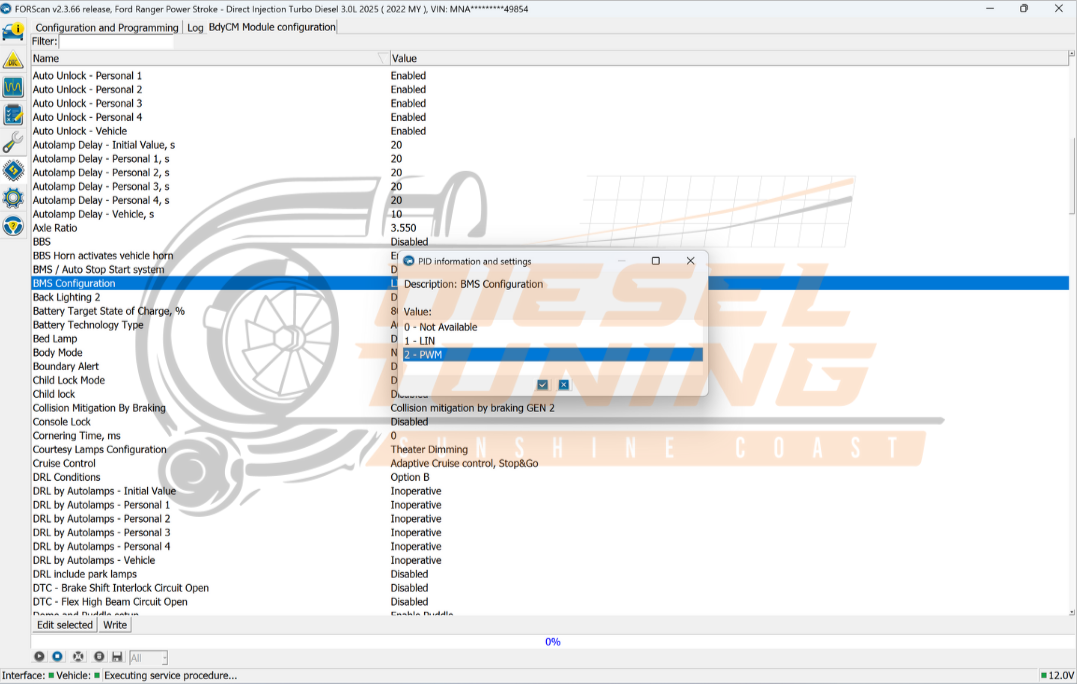
    3. Change BMW Config to PWM.
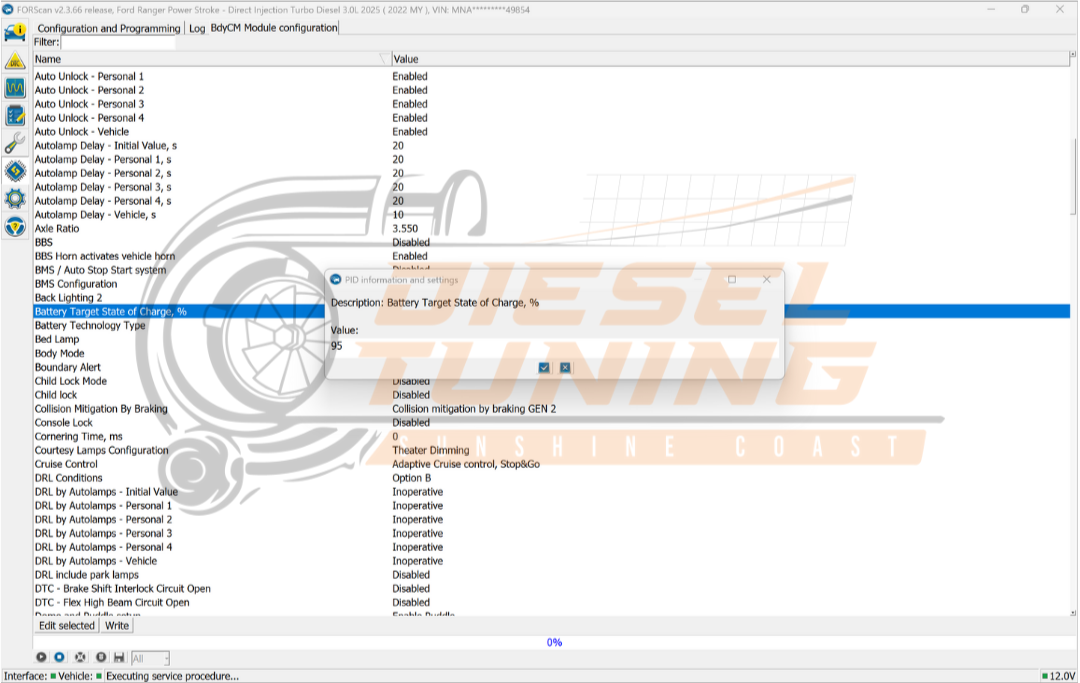
    4. Change Battery Target to 95%.
    5. Write changes and confirm.
    Ford Ranger diagnostic interface displaying BdyCM (Body Control Module) options and modules for vehicle configuration in FORScan software, including Start/Stop settings and battery strategy adjustments.
    Figure 2: Open BdyCM to access Start/Stop-related settings.
    Configuration screen displaying BdyCM (Body Control Module) options for disabling BMW Start/Stop feature in FORScan software.
    Figure 3: Set BMW/Start Stop to Disabled.
    Configuration screen showing BdyCM module settings in FORScan, highlighting Auto Stop Start system options with values for enabling or disabling.
    Figure 4: Change BMW Config to PWM.
    BdyCM module configuration interface displaying battery target settings, including options for Start/Stop system and PWM configuration adjustments.
    Figure 5: Increase Battery Target to 95%.
    BdyCM module configuration interface displaying settings for Battery Target State of Charge at 95%, relevant to disabling Start/Stop features in vehicle programming.
    Figure 6: Confirm the changes, then write to BdyCM.
  3. Disable Start/Stop strategy in HVAC

    This step disables Start/Stop strategy inside the HVAC module so the system doesn’t try to influence Start/Stop behaviour.
    1. Open HVAC configuration.
    2. Set Start Stop Strategy to Disabled.
    3. Write changes and confirm.
    HVAC configuration interface showing settings for disabling Start/Stop strategy and adjusting Battery Target to 95%, with visible options for BdyCM module configuration.
    Figure 7: Disable Start/Stop strategy in the HVAC module.
    HVAC module configuration interface displaying Start Stop Strategy set to Disabled, relevant to disabling Start/Stop functionality in vehicles.
    Figure 8: Confirm and write HVAC changes.

Optional cleanup (recommended)

Some vehicles will still show Start/Stop options or prompts in the cluster or infotainment even after it’s disabled.
These steps clean that up.

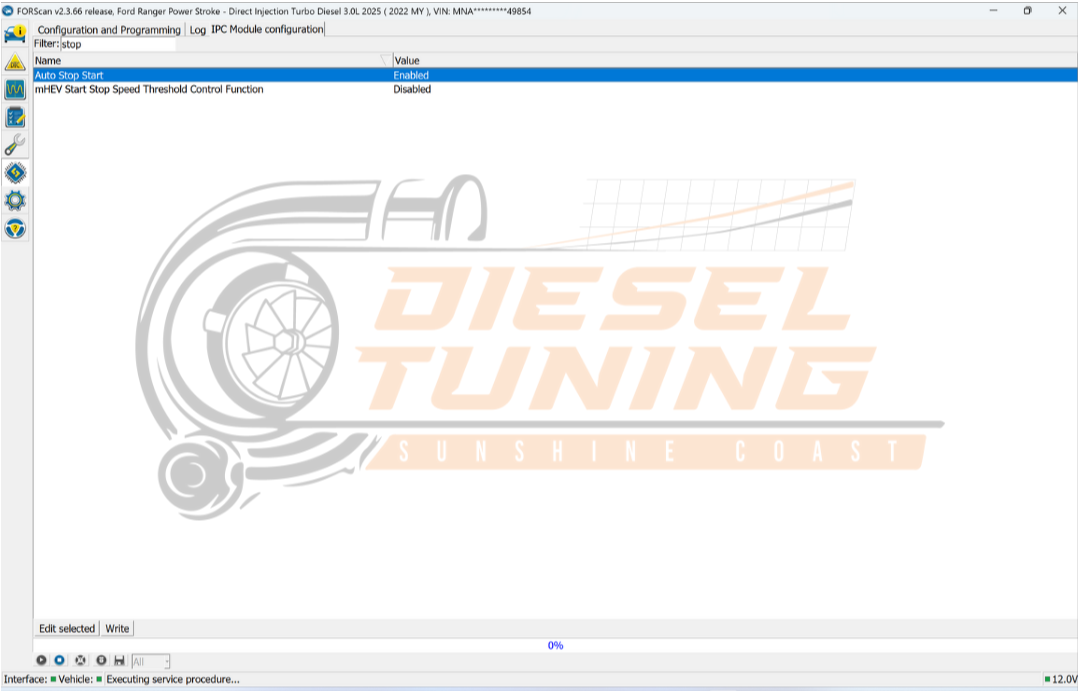
IPC (Instrument Cluster)

  1. Open IPC configuration.
  2. Set Auto Start Stop Enable to Disable.
  3. Write the change.
HVAC module configuration screen showing Start/Stop strategy set to Disabled, with confirmation prompt for changes in vehicle settings.
Figure 9: Disable Start/Stop prompts/indicator in the instrument cluster (IPC).

APIM (Infotainment / SYNC)

  1. Open APIM configuration.
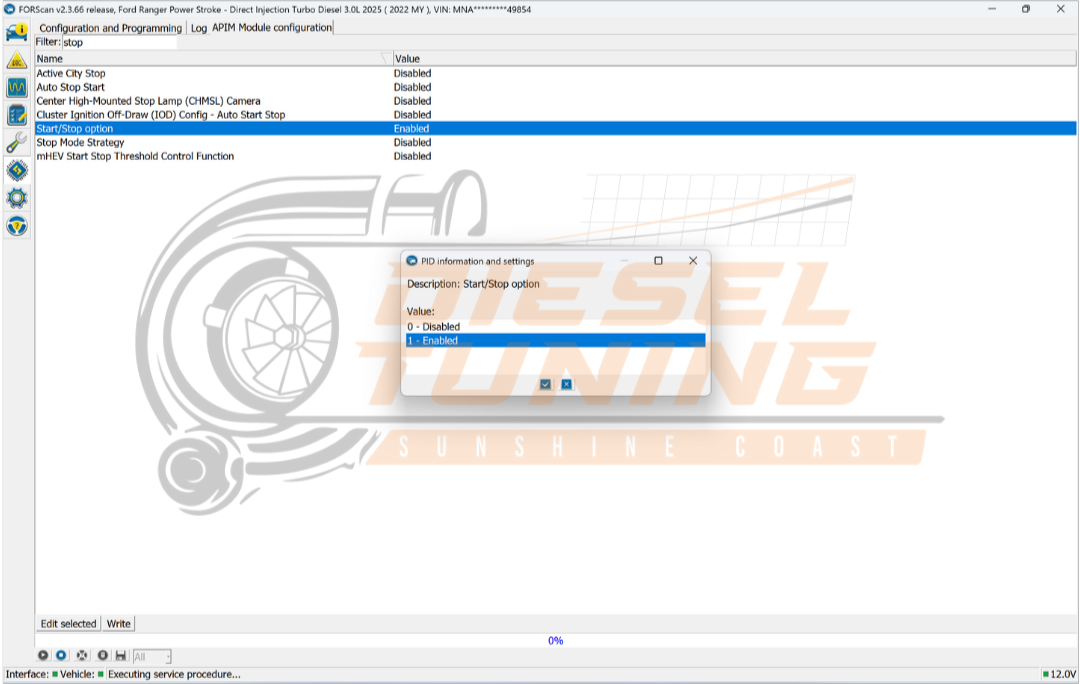
  2. Set Start Stop Option Enable to Disable.
  3. Write the change.
APIM configuration screen displaying Start Stop Option set to Disabled in a diesel tuning software interface.
Figure 10: Remove the Start/Stop option from infotainment (APIM), if present.

Final check

  • Cycle ignition OFF → wait 30–60 seconds → ignition ON.
  • Start the vehicle and confirm Start/Stop no longer activates.
  • If you have warnings, stop and restore original values.
Image showing the FORScan software interface with highlighted settings for disabling the Start/Stop option in a vehicle's APIM module configuration, featuring options for "Disabled" and "Enabled."
Figure 11: Example final confirmation after changes.

Want us to do it for you?

If you’d rather not touch module coding, book in with SC Diesel Tuning. We’ll disable Start/Stop properly with voltage support,
confirm module writes, and check for faults.

Sunshine Coast Diesel Tuning
6/3 Commerce Ave, Warana QLD
Call: 0423 108 474

Want help with your exact setup?

Send your rego + mods + what you’re trying to achieve and we’ll point you in the right direction.

x